THE TRADE MANAGER INSTRUCTIONS & FAQ
Trade Manager Expert Advisor for Trading
Provided by Tiny & Judy van Niekerk for demonstration purposes and is not to be shared. Use of this EA is entirely at your own risk.
Contact Judy on judy@tinyandjudy.com if you have any questions or need assistance.
Description:
This EA is can be used for the following charts/strategies –
· Manual**
· 20 Bounce
· Pip Runner
· 180 Profit Booster
· Income Wave
(should you wish this to work on other strategies please contact me)
This EA is placed on a chart and will work for all trades placed on that instrument and strategy. Example if you place 1 or more trades on the same instrument /strategy combo the EA will apply to all of them.
**Should you have multiple Manual trades on the same instrument and you have applied the EA – the EA will manage each of these trades.
When using the Smartcharts Manual template it will automatically set the trade to Manual. If you are using a standard MT4 trading platform (without Smartcharts) ensure that you always add the comment ‘Manual’ when placing the trade and select the Manual strategy option in the EA.
Should you wish for the EA NOT to apply to a specific MANUAL trade, then put a comment into the comment box when placing a trade, use the following - NO EA, this will ensure that the EA does NOT work for this particular trade. Doing this will not impact the other trades in any way.
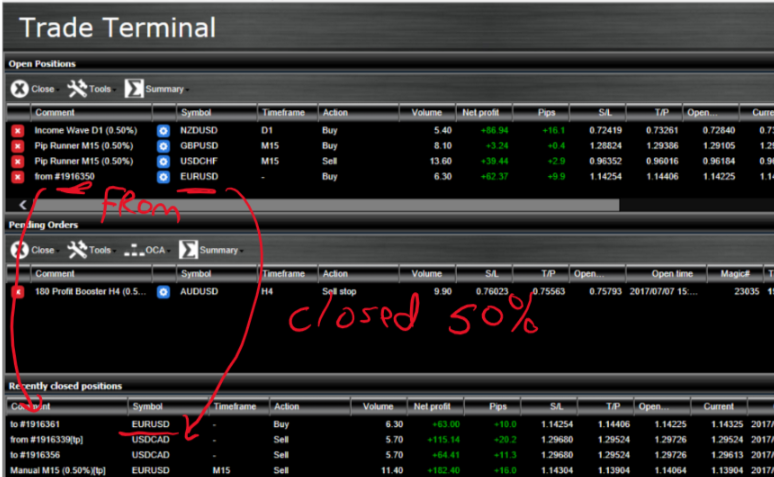
Winning positions scale out (close the pre selected portion of the trade at the percentage pre- selected in the INPUT section) when the trade reaches the percentage selected towards Take Profit and will move the stop loss to break even plus Spread for the remaining portion of the trade (in your trade terminal this will show as a new trade at the adjusted volume and the closed portion will show in your closed trades section).
Losing trades close out at the percentage to stop loss selected.
INSTALLING THE EA
When you receive the file, copy it into your terminal directory and this is found on the drive you installed SmartCharts. On my laptop this is the path -
C:\Users\judes\AppData\Roaming\MetaQuoteserminal\62135AE44FDEC7F2E17CC7982861DF10\MQL4\Experts
You can find your terminal path by going to SmartCharts, click on File on the menu bar, open data folder – that opens a Windows Explorer box at your terminal and across the top you will see – Roaming – MetaQuotes – Terminal – xxxxxx
When you are at this directory – scroll to MQL4, click on this, then select Experts and paste the EA into here
Then close and reopen SmartCharts
Then click FILE – VIEW – NAVIGATOR
Scroll down until you find EXPERT ADVISORS – Click on the ‘+’ button and scroll down until you see Trade Manager
If you see the file Trade Manager, this confirms you have installed the EA correctly.
In order for the EA to work you need to turn ‘AUTO TRADING’ ON – last icon on the standard toolbar BEFORE you activate the EA.
If you DO NOT do this, you will have the EA on the chart and expect it to work – but it will not execute the instructions and will return a 4109 error (see troubleshooting section below to remedy)
Watch the video below to find out how to load the Trade Manager onto your MT4 terminal (the example below talks about the EA Pogo - however it is the same process for Trade Manager
NB - The Chart must stay OPEN and PC must not enter sleep mode or be turned off for EA to work, alternatively use a Server/ VPS to run the EA.
Setting the EA parameters (after placing onto chart)
1. From the dropdown list, select the strategy you are using (double click on the word manual which will activate the dropdown – then single click on the strategy)
2. Select a percentage of the Trade to close/ scale out
3. Select a percentage to Take Profit to move stop loss and scale out
4. Select a percentage to Stop Loss to close the trade
5. Select the slippage you are happy with (we recommend 50 which is 5 pips)
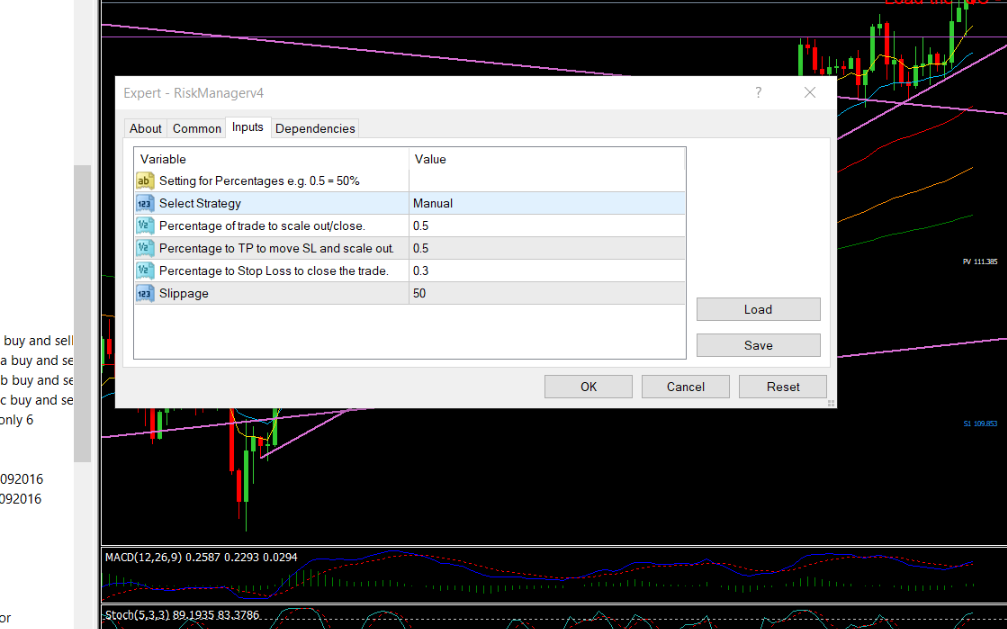
NB! For all percentages use the following notation 0.1 = 10%, 0.5 = 50%, 1 = 100% etc.
If you use 1 for Percentage of Trade to close out the entire trade will be closed. If you use 1 for the Take Profit percentage then the trade needs to reach full take profit to close. If you use 1 for the Stop loss then the trade will run to the full stop loss before closing.
Stopping the EA
To stop the EA either close the chart or delete the EA from the chart. This can be done when the trade is live – once it is stopped it will not work on the trade. To restart it, simply drag it back onto the chart and set the settings to your requirements.
Any trades open on the chart/instrument that the EA is live on will be impacted by the rules of the EA.
TROUBLESHOOTING
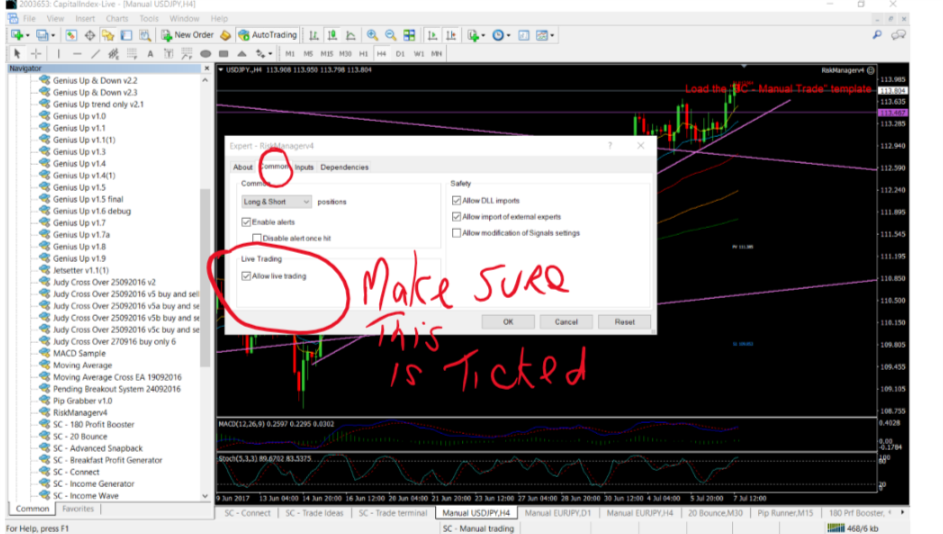
If an alert box opens with the error message 4109– this means you have not allowed auto trading or you did so AFTER the EA was activated. To correct this, turn AUTO TRADING on AND right click on the chart select EXPERT ADVISORS – Properties (or just push f7). This brings up the property box of the EA, select the COMMON Tab and tick ‘Allow Live Trading’ and select OK. This will automatically start working. (See image below)
As you have purchased The Trade Placer make sure you are on our Skype support group. If you are not, please send me an e-mail to judy@tinyandjudy.com
As always, your feedback is most welcome. Any suggestions please sent to me at the above address.
Wishing you phenomenal success in your trading.
Judy van Niekerk
| © 2018 Tiny and Judy Consulting Ltd | DISCLAIMER | PRIVACY POLICY